
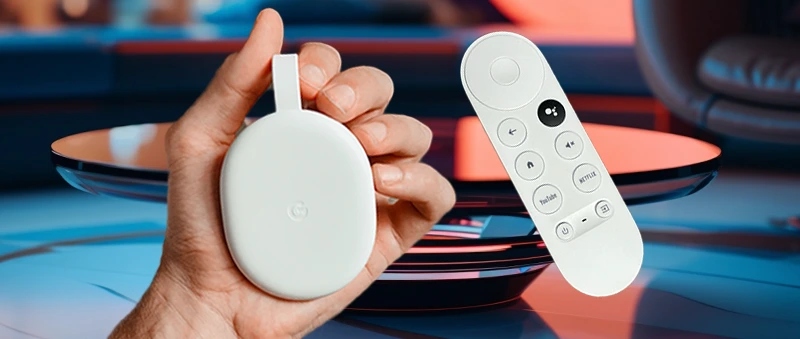
Providing a platform for you to stream all of your favourite movies and TV shows is only a fraction of what Chromecast can do. Chromecast devices are also extremely portable, allowing you to have a consistent entertainment experience everywhere you go and is the only casting service that currently works directly with Mat Quest devices. So for all the VR lovers out there, you can cast your Meta Quest experiences via your TV with friends and family all through this one device!
For those of you still on the fence about getting a Chromecast, I can share from my experience – it's been a game-changer. I got mine from Amazon, and it’s exactly what I needed for my setup at home. If you're curious, you can check out the same model I bought just below.
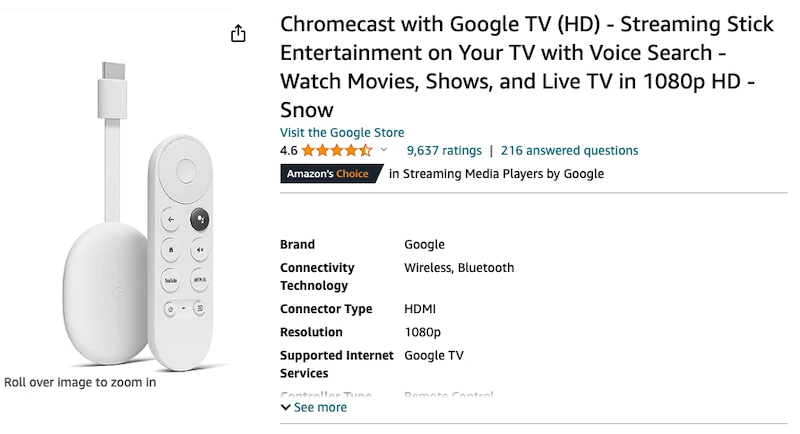
USA: https://amzn.to/3Pk8z9c
UK: https://amzn.to/447wmxs
CA: https://amzn.to/42KZd9A
AUS: https://amzn.to/42UhWje
Google Chromecast Setup Instructions
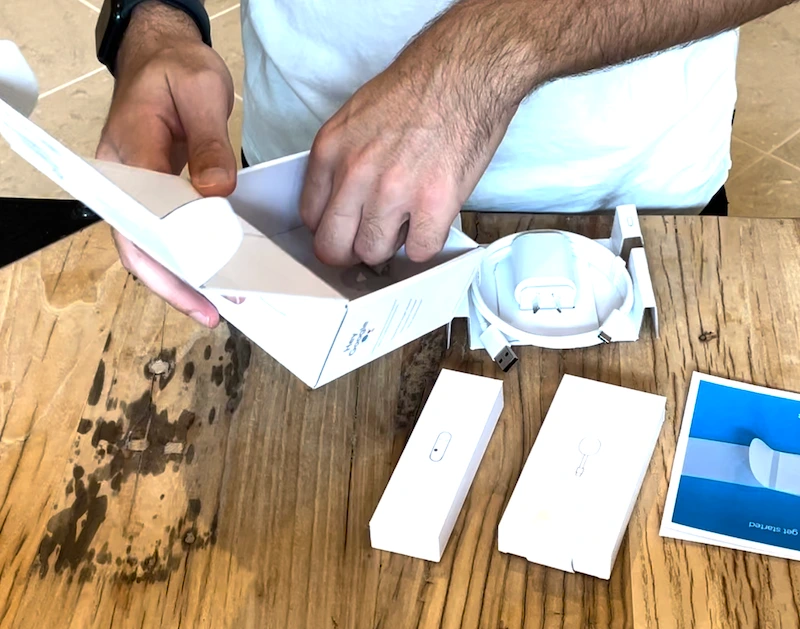
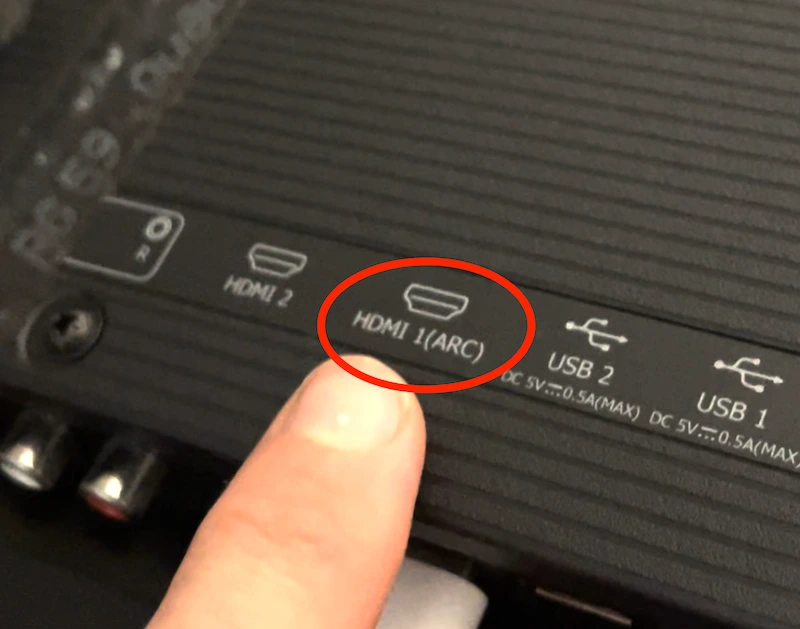
1. Unbox your device & plug it into one of your TV’s HDMI ports.
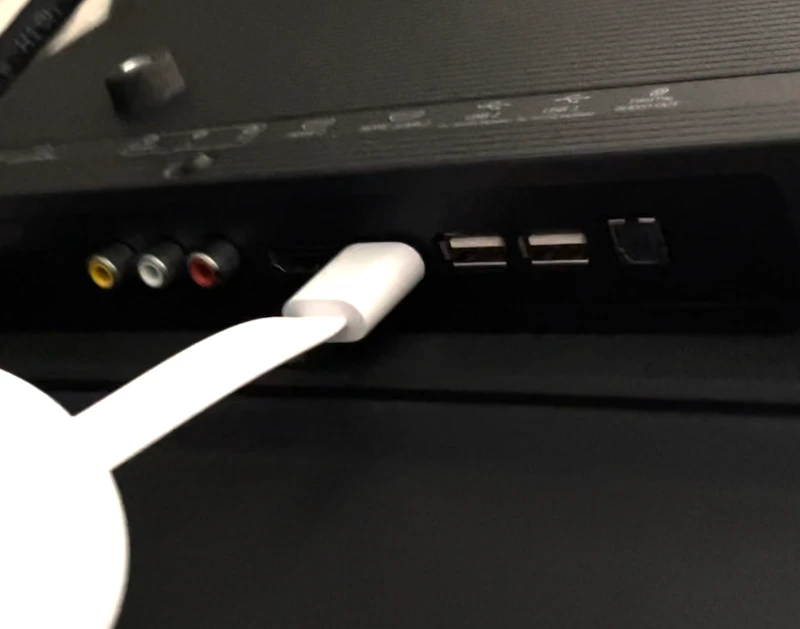
NOTE: Take note of which port you plug the Chromecast into as you’ll need to know for the next step.
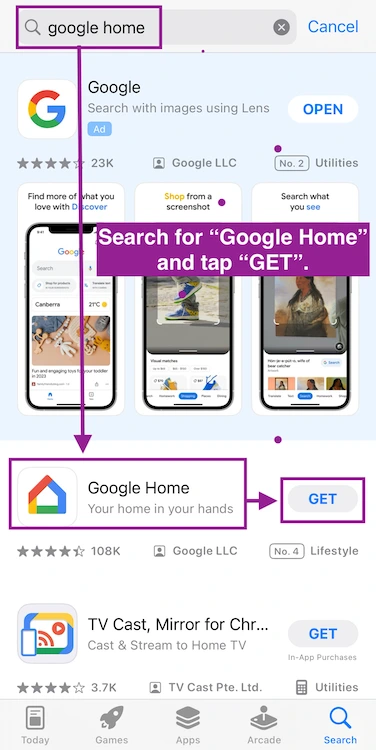
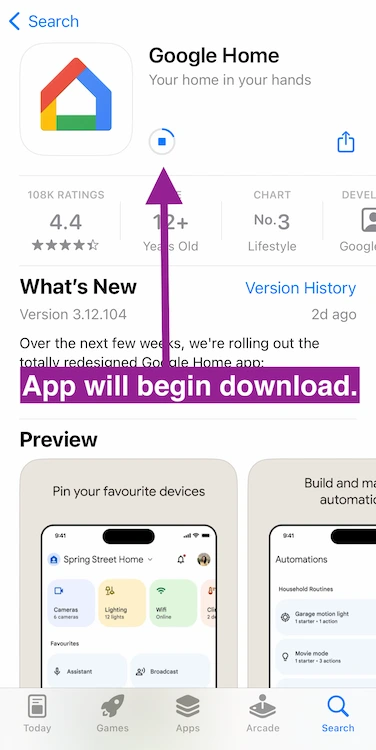
2. Download the Google Home App to your phone. (if you haven't already got it)
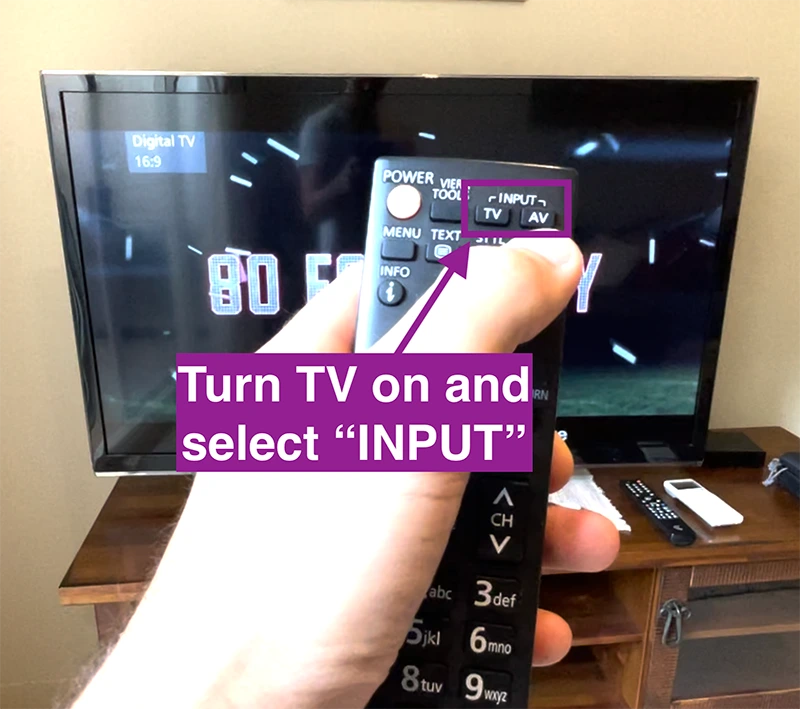
3. Turn TV on, select "Input" on your remote & then select the HDMI port number you plugged the device into.
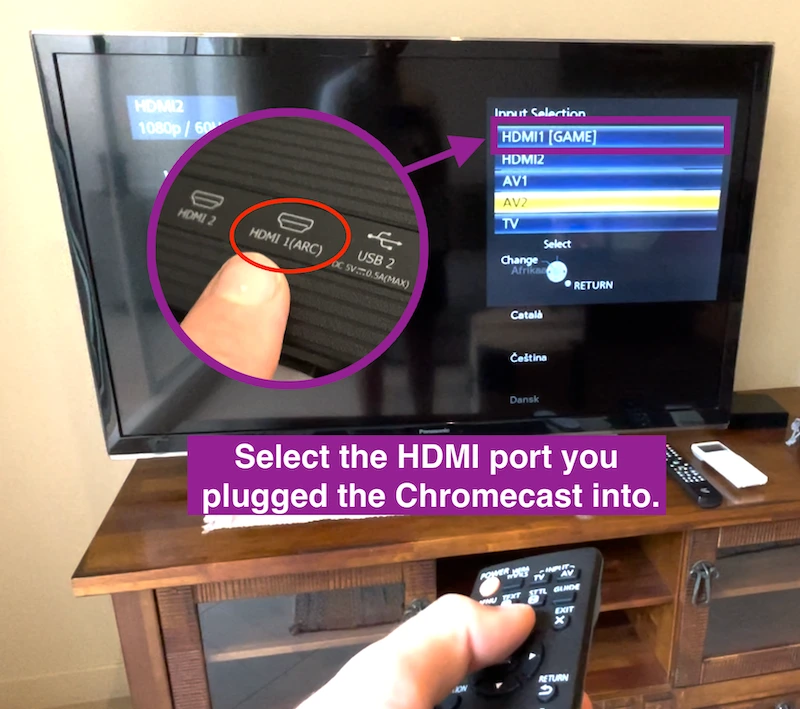
NOTE: A welcome screen should pop up with a prompt to select your preferred language as show below.
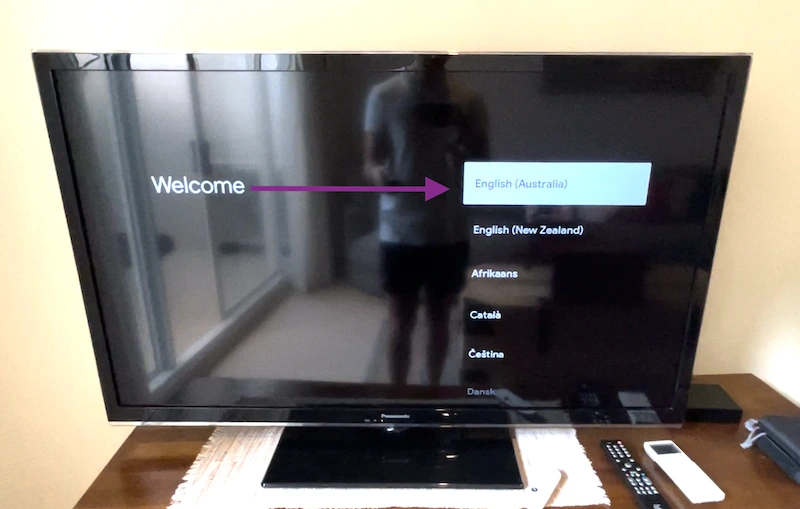
4. After language selection, scan the QR code on your TV screen.
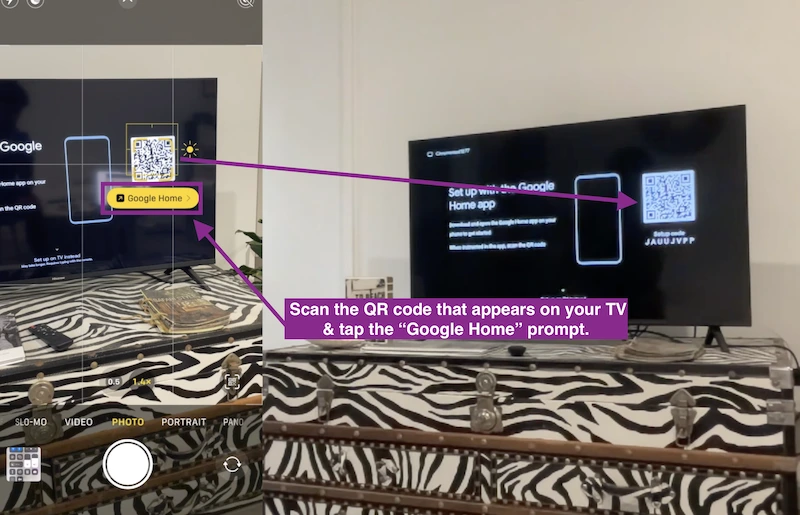
Your phone will automatically redirect to the Google Home App where you'll need to select which home you want to add the device to.
The Google Home app will then begin searching for your Chromecast device.
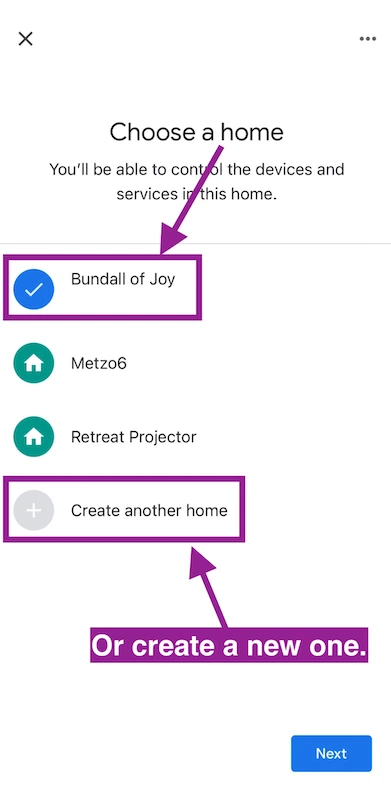
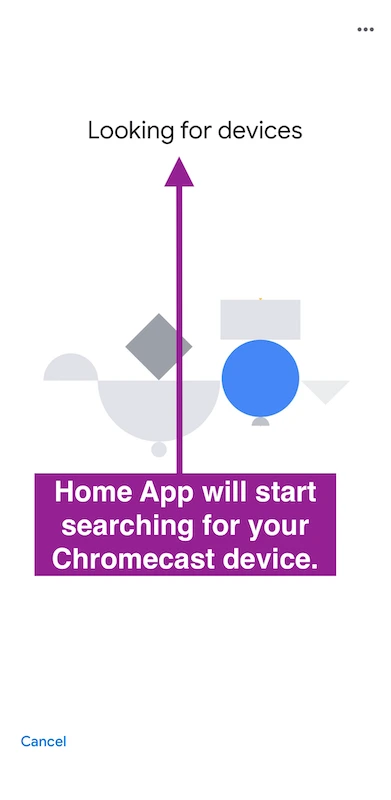
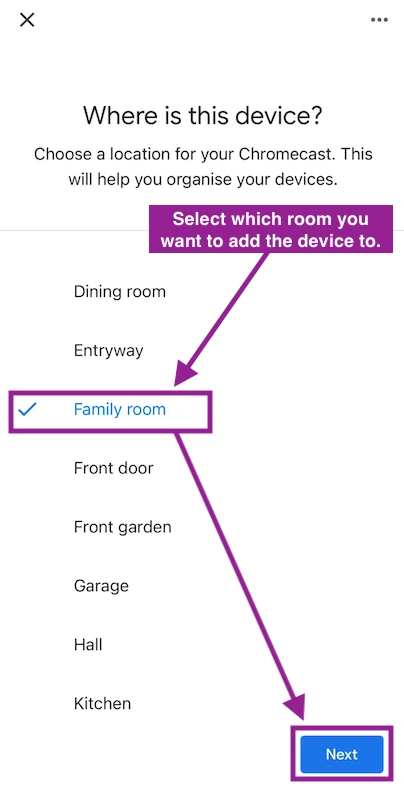
5. Once found, select the room you wish to add your new device to and select your wifi network to connect.
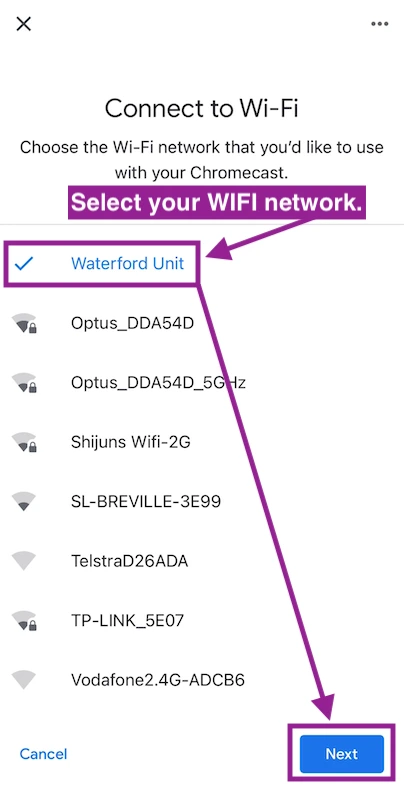
6. Once you're connected to the internet, your Chromecast will prompt you to grant access to your gmail account for a smooth setup. Click "Continue".
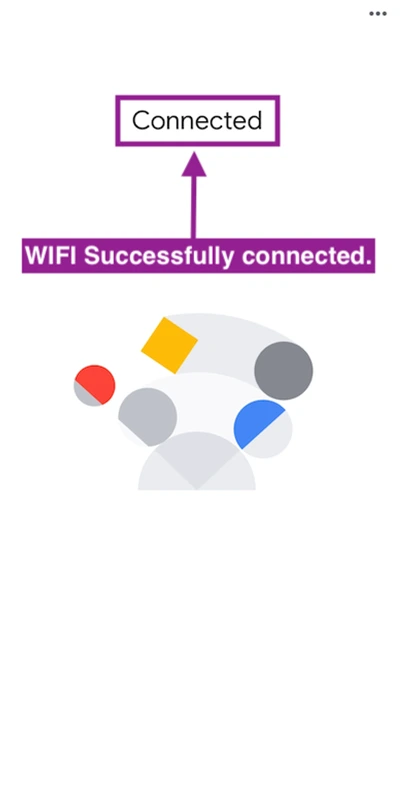
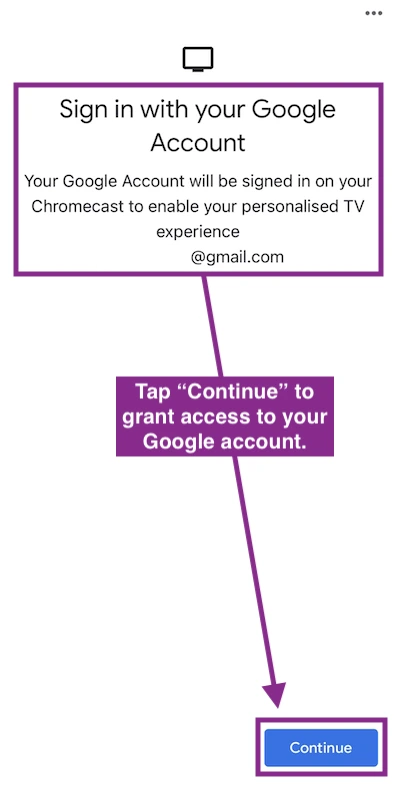
7. Once signed in you then just need to follow the Chromecast setup prompts like activating voice assistant & selecting which apps you want loaded onto your device.
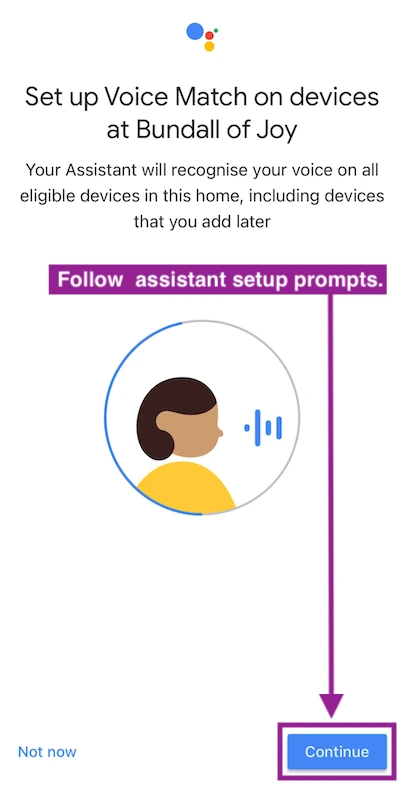
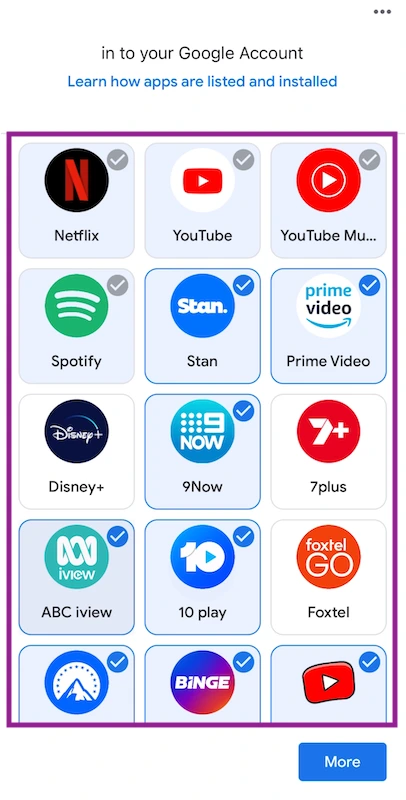
8. After selecting your preferences, you'll then be promoted to complete the rest of the setup directly on your TV and test your remote control.
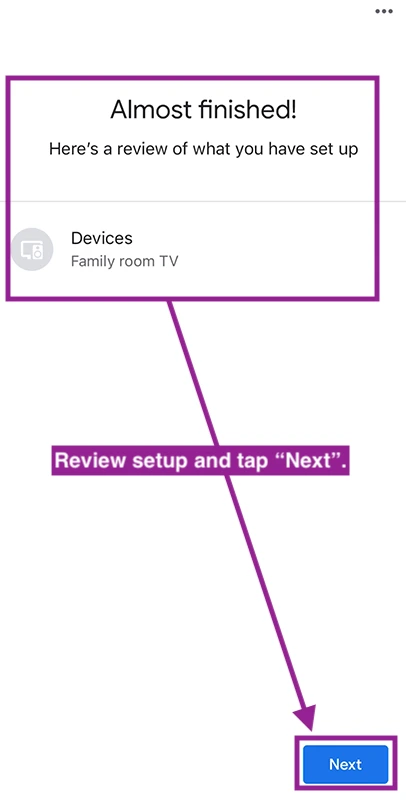
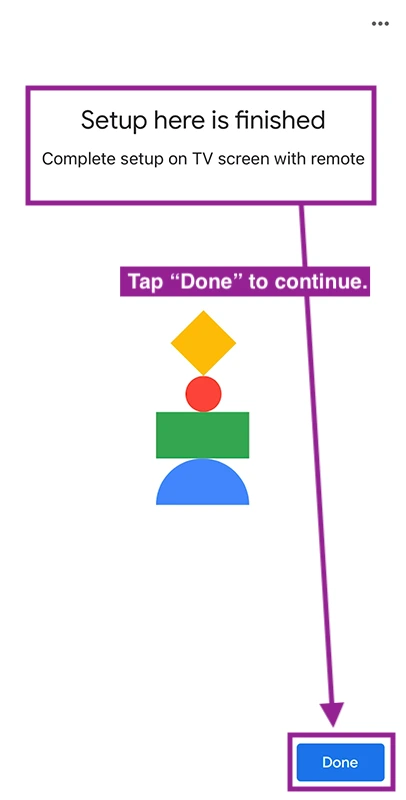
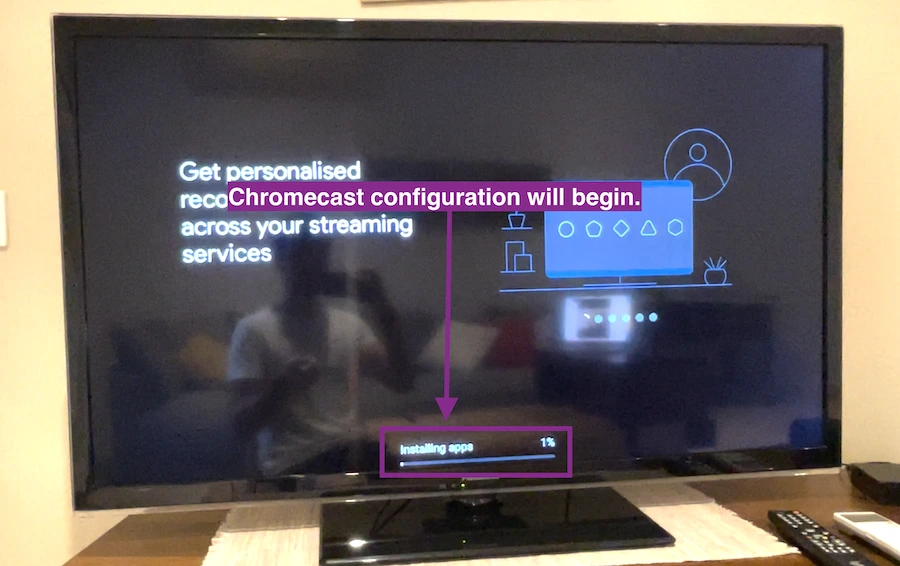
9. From here, Chromecast will start finalising the setup. This can take up to an hour depending on the strength of your internet connection and how many apps you selected to load on the device.
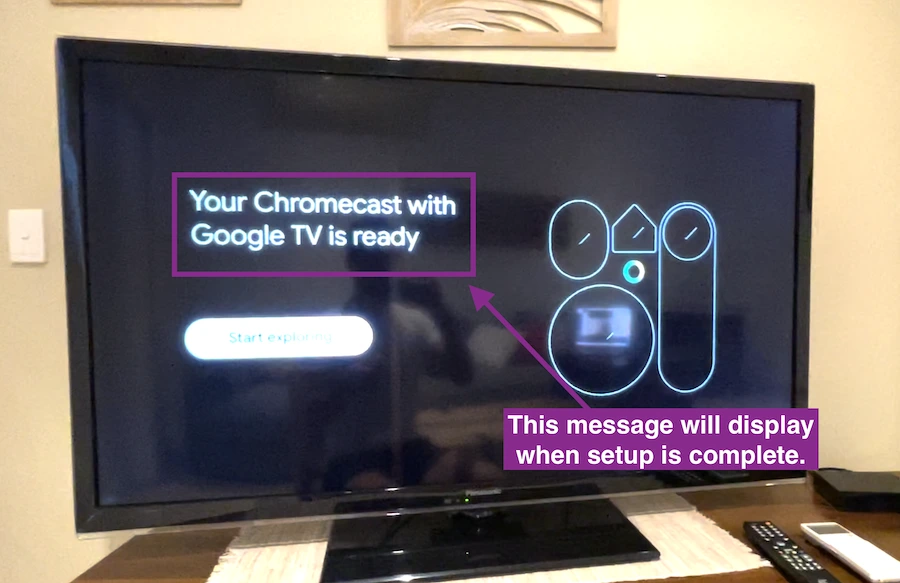
10. Once the device has completed the setup, you'll be presented with a message on your TV screen that reads "Your Chromecast with Google TV is ready!". Simply hit start exploring and you're off to the races.
And that’s it!
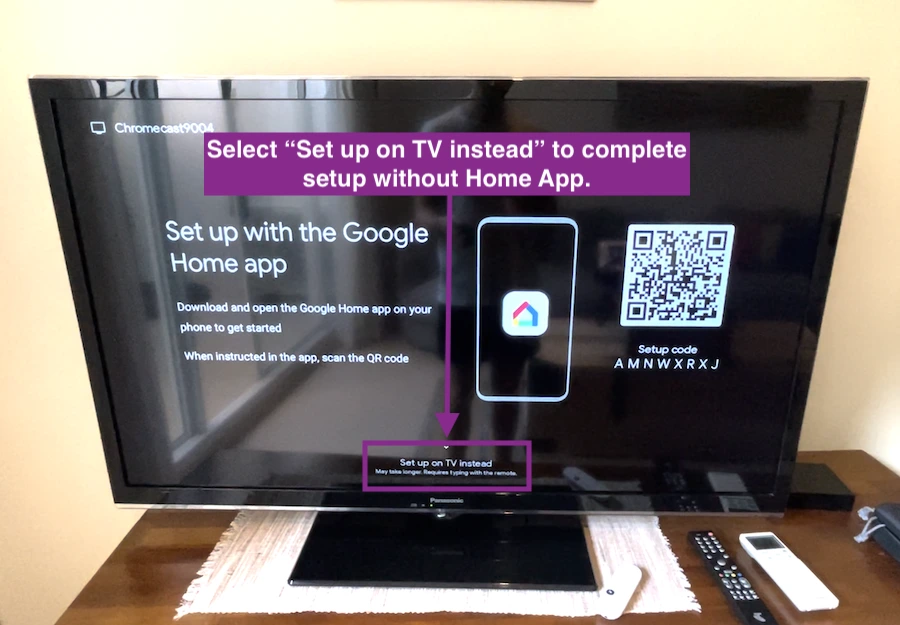
If you have trouble completing your setup via the Google Home app, you do have the option to complete the setup directly on your TV screen. There's a few more steps involved like manually connecting to your wifi and manually signing in to your gmail account, but it still works none the less.
To complete your Chromecast setup using this method, just the "Set up on TV instead" option just below the QR code on the first screen.
Hopefully this guide was able to help you setup your Chromecast successfully. If you landed here by searching either “google Chromecast setup wifi”, “how set up Chromecast” or “google Chromecast setup tv”, comment “Search Term Hero” in the below for me so I know my content is reaching the right people.
Chromecast FAQs
On a final note, I thought it might be useful to answer some of the most frequently asked questions that get asked about Chromecast devices on the internet. Just so anyone that’s struggling to find a straight answer, can get some clarity on how Chromecast works.Chromecast is sold by many retailers, including electronics stores, big-box stores, and online retailers like Amazon, Best Buy, Walmart, and the Google Store.The price of Chromecast can vary depending on the model and region. As of my last update in April 2023, the standard Chromecast (3rd generation) typically costs around $30-35 USD, while the Chromecast with Google TV is around $50-60 USD.Yes, as long as the monitor has an HDMI port and can display the output resolutions supported by Chromecast.Chromecast works with any TV that has an HDMI port. As long as your TV has this input, you can use Chromecast with it.The reset button on a Chromecast is typically located on the side of the device, next to the micro-USB or USB-C port (depending on the model). To reset, you hold down this button for about 25 seconds or until the solid light begins to flash.Many popular apps are compatible with Chromecast, including Netflix, YouTube, Hulu, Spotify, Google Play Movies & TV, HBO Now, and many others.Yes, Chromecast can turn on your TV if it supports HDMI-CEC (Consumer Electronics Control). This feature allows Chromecast to send signals through the HDMI port to turn on the TV and switch to the correct input automatically.The first-generation Chromecast was released on July 24, 2013Yes, Chromecast can mirror the screen of an iPhone using certain apps that support Chromecast, such as YouTube, Netflix, etc. However, it can't mirror the iOS interface in the same way that Apple's AirPlay can.
Chromecast generally requires a WiFi connection to stream content, as it doesn't store content and needs an internet connection to receive streaming data. However, there are a few workarounds for using Chromecast without a traditional WiFi network:
- Using a Mobile Hotspot: You can use your smartphone to create a mobile hotspot and connect your Chromecast to this network. However, keep in mind this could consume a significant amount of your mobile data.
- Guest Mode: Some Chromecast devices support a feature called 'Guest Mode'. This allows guests to cast to Chromecast without connecting to your WiFi network, using a special PIN. However, this still technically uses a WiFi signal generated by the Chromecast for the initial setup.
Thom
The Meta Junkie